This post will be a review of the steps required to get a raspberry pi to boot for a merge experiment.
Terminology:
rpi: raspberry pi (5)
dcomptb: dispersed computing testbed (circa 2017-2021)
minio: a flat key space object store, where testbed images are stored
etcd: simple key value datastore, designed for small data values
materialization: the actual appropriation and state management of hardware
realization: the logical appropriation of resources to physical hardware
dtb: device tree blobs - binaries that tell the kernel about the physical resources of the hardware
u-root: golang userland linux bootloader
Let us start with first configuring the raspberry pi. The first settings we will need to extract are the raspberry pi’s firmware boot options.
Firmware
The default options are:
test@raspberrypi:~ $ sudo rpi-eeprom-config
[all]
BOOT_UART=0
WAKE_ON_GPIO=1
POWER_OFF_ON_HALT=0
A full overview of the keys, and values are in the documentation. For merge, we need to modify the firmware settings. Also a note, that if you mess up your settings (mess up in the sense of raspberry pi and havent bricked it), you can restore the default settings with a recovery.bin. A general description of setting the firmware is in the documentation. This is a two step process where you load in the special sdcard, the recovery.bin is re-written to firmware after the led flashes green (~10 seconds) you can power off the rpi, remove the sdcard, but in your sdcard, and power on the system.
Our first method is to save the output from the config command above, and edit the settings so that we can add more merge-oriented options. The most important of which is we modify the boot order to (0xf4267), the boot order is read in reverse, so boot 7 first, then 6, etc. This specific set of instructions says try booting 7 (http) then 6 (nvme) then 2 (network) then 4 (usb-msd) and finally f (try again from the start). For merge this means that when we are in the harbor network, our node is ready to be booted, so we should http boot. That means that the HTTP_HOST name must be able to resolve. In the case of experimentation, where the node is already allocated, it means that HTTP_HOST cannot resolve, and therefore attempts to boot from nvme which stores their experimentation image. The other settings here are either to specify a specific value (UART_BAUD) or for debugging (netconsole, boot_uart).
test@raspberrypi:~ $ sudo rpi-eeprom-config
[all]
BOOT_ORDER=0xf4267
BOOT_UART=1
UART_BAUD=115200
HTTP_HOST=images.mergetb.test
HTTP_PORT=80
HTTP_PATH=net_install
NET_INSTALL_ENABLED=1
NET_INSTALL_AT_POWER_ON=1
NETCONSOLE=6665@192.168.1.100/,6666@192.168.1.1/
DHCP_TIMEOUT=45000
DHCP_REQ_TIMEOUT=4000
Now that we have a configuration file, we need to write this out to eeprom, but we have one more step. The raspberry pi uses signed images. If your image is not signed, it will not boot. This means that we will need to put our Merge signing key into eeprom as well, so that when we download our signed http image, the firmware will be able to validate the signature. Documentation. In the little script I’ve written below, we assume my public key is reachable at images.mergetb.test and the firmware version for the raspberry pi (2712) I am using is on the host system. At the time of writing this, only 2711 and 2712 firmwares are available for the rpi. We take our boot.conf that we wrote above and the original firmware, and apply our config and our signing key, then we overwrite the existing boot firmware with our own. The name pieeprom.upd is a special name, like recovery.bin and the documentation for the boot files is here.
#!/bin/bash

set -ex

cp /lib/firmware/raspberrypi/bootloader-2712/latest/pieeprom-2025-08-27.bin pieeprom.original.bin
curl -v http://images.mergetb.test:80/net_install/rpi-pubkey.pem -o ./rpi-pubkey.pem

rpi-eeprom-config -c boot.conf -p rpi-pubkey.pem -o pieeprom.updated pieeprom.original.bin

sudo rpi-eeprom-config -a boot.conf pieeprom.upd
sudo cp pieeprom.updated /boot/firmware/pieeprom.upd
So now we have added our public key to our firmware, with an updated firmware. Our next step will be creating a sled image that will worked with http boot. Our first constraint here is that we have a 96MB maximum file size (Documentation). So we need to make sure that the Kernel, Initramfs, and all the firmware files we will need (discussed in a bit) all fit in 96MB.
Sled:
Sled is mergetb’s imaging tool. Originally written for dcomptb, is imaging software that 1) reduced the write latency when compared to emulab’s frisbee, 2) manages the write process for low-memory devices (1-2Gb), 3) did not support http booting. For physical allocations (non-virtual) sled is still used because we can prematurely write a default image to the node so when a user selects the node, if they selected the default image, they are immediately ready for their experiment. For a non-default image, the latency cost is transfering the image from minio over the network to the disk. The power and boot sequence are amortized as those steps are done on de-materialize.
On a normal x86 system we have firmware that may already have http boot or pxe boot that will allow us to chain boot into sled fairly seemlessly. With the raspberry pi, we need to package sled- (the kernel, initramfs, and for arm - the dtbs) into a single FAT image.
Each sled image is built with the physical hardware in-mind. So for the raspberry pi, we get a copy of the raspbian OS - built on linux. RPI Documentation explains the specific process for building the kernel for rpi 5, using at the time of writing, using: KERNEL=kernel_2712 and make bcm2712_defconfig. Note: The default kernel does not include kexec builtin, so i’ve modified the default kconfig in order to also include kexec. The sled kconfig for raspberry pi can here found here. The script that is actually used is in the repo, but the short hand for how to build the kernel on an x86 system is here- making sure we cross compile the kernel to aarch64.
#!/bin/bash

set -ex
set -o pipefail

# Install dependencies
sudo apt install bc bison flex libssl-dev make libc6-dev libncurses5-dev
sudo apt install crossbuild-essential-arm64

# Clone kernel
git clone --depth=1 https://github.com/raspberrypi/linux
cd linux

# Set kernel name for Pi 5
export KERNEL=kernel_2712

# Configure
make ARCH=arm64 CROSS_COMPILE=aarch64-linux-gnu- bcm2712_defconfig

# Build
make -j$(nproc) ARCH=arm64 CROSS_COMPILE=aarch64-linux-gnu- Image modules dtbs
For the actual build process of the raspberry kernel, I’ve broken it into two docker container build files. First is the base builder, which just builds the kernel, this alleviates the time it takes to build u-root or sledc. The containers are here and here. The first container file is responsible for building the default kernel, initramfs, and dtbs. Of those, we will directly use the kernel and dtbs, but the initramfs requires our sled binary.
RUN ./u-root -o /workspace/build/rpi/boot/cmd.cpio \
	-uinitcmd "/bin/sledc run" \
	-files "/u-root/sledc:bin/sledc"
This is the command the creates cmd.cpio the u-root initramfs which just contains our sledc command. There is no init and no shell, so sledc is responsible for getting the node ready to be imaged.
At this point, after running the docker containers with a simple script:
docker build -f containers/Dockerfile.base -t rpi-kernel:base .

mkdir -p build
docker run --rm -v `pwd`:/workspace2 rpi-kernel:base bash -c "cp -r /workspace/utils/build/dtbs /workspace2/build/"

# this will take the already built kernel and create binaries and initramfs
docker build --no-cache -f containers/Dockerfile.rpi -t rpi:final .

# this will copy from docker container's build to your local machine via the mount
docker run --rm -v `pwd`:/workspace2 rpi:final bash -c "cp -r /workspace/build /workspace2/"
We will have the following files in build:
.
├── dtbs
│   ├── bcm2712-rpi-5-b.dtb
└── rpi
    ├── bin
    └── boot
        ├── Image
        └── sled.cpio.zst

5 directories, 34 files
I’ve deleted all the irrelevent files for this use case, we are left with Image the linux kernel, sled.cpio.zst the linux initramfs with our sled command, and bcm2712-rpi-5-b.dtb our dtb for the rpi. We now have all the files we need, so the next step is to build the rpi http bootable image. The documentation for the directory contents are here.
For this task, i’ve created another script that will build this all-in-one image here. I’m going to address that script in piece meal here to simplify it. Our first step is in making sure we have the keys, if this is the first time building the script, it creates the keys, but then note that we will need to go back to the raspberry pi and update our keys there.
#!/bin/bash
set -ex

# create our private key if not exists
if [[ ! -f "rpi-priv.pem" ]]; then
	openssl genrsa -out rpi-priv.pem 2048
fi
if [[ ! -f "rpi-pubkey.pem" ]]; then
	openssl rsa -in rpi-priv.pem -outform PEM -pubout -out rpi-pubkey.pem
fi

# make sure nothing is mounted
sudo umount /mnt/boot_img || true
sudo mkdir -p /mnt/boot_img
sudo rm -rf boot.img

dd if=/dev/zero of=boot.img bs=1M count=92
sudo mkfs.vfat -F 32 -n BOOT boot.img

sudo mount -o loop boot.img /mnt/boot_img
Next, we copy the output files we’ve created from sled, and put them into the image:
# These come from sled rpi-branch
# assumes sled.cpio is our initramfs in this directory
sudo cp sled.cpio.zst /mnt/boot_img/initramfs
# Image is the kernel that is created with kernel_2712 branch
sudo cp Image /mnt/boot_img/vmlinuz

sudo cp bcm2712-rpi-5-b.dtb /mnt/boot_img/
Next, we need to create a config.txt this is the equivalent to cmdline on linux, and tells the raspberry pi how to boot. We need to specify the kernel by name (vmlinuz, was Image) and initramfs (was sled.cpio.zst). Our kernel does have zst supported, so it will be able to uncompress the initramfs. Then, just like in eeprom, we need to set uart enabled, and set the console settings. We also want to set eeprom_write_protect to 1 to prevent users from re-mounting eeprom and potentially bricking our pi.
# this will be our boot params
cat << 'EOF' | sudo tee /mnt/boot_img/config.txt > /dev/null
[pi5]
kernel=vmlinuz
initramfs initramfs followkernel

# UART/Serial Console Debugging
enable_uart=1                    # Enable primary UART (GPIO 14/15)
uart_2ndstage=1                  # Enable UART output from bootloader
console=serial0,115200           # Kernel console on serial

# Boot Verbosity
bootcode_delay=5                 # Delay in seconds (for reading messages)
boot_delay=1                     # Additional delay after GPU firmware loads
boot_delay_ms=1000              # Same as above but in milliseconds

# Display boot messages on screen
disable_splash=1                 # Disable rainbow splash screen

# GPIO Status
gpio_pin_status=1               # Show GPIO pin status during boot

dtdebug=1                       # Enable device tree debugging

# Network Boot Debug (for your HTTP boot scenario)
dhcp_timeout=45000              # Already in your EEPROM config
dhcp_option_97=0                # Client identifier (optional)

# dont allow users to write to eeprom and brick us
eeprom_write_protect=1
EOF
Next we have the actual cmdline for the kernel. Another Note: Inframac is written here, which may make it harder to have as a programmable option. Setting the inframac for foundryc is not necessary, and while there is now an arm64 foundry, we can probably remove it for the most sled applications as we can set the interface to a known name (e.g., eth0 without needing the portal to tell sled the inframac. Or we can build this image on the fly, which doesnt take too long, but could be annoying, as then we would need to modify eeprom, and set each HTTP_PATH to be the inframac so that each rpi get’s their individual kernel build with their inframacs. The most likely solution will be to disable foundry’s inframac when the option is not found.
# and command line when we boot into the kernel
cat << 'EOF' | sudo tee /mnt/boot_img/cmdline.txt > /dev/null
console=serial0,115200 console=tty1 debug loglevel=8 earlyprintk=serial0,115200 earlycon=pl011,0x107d001000,115200n8 inframac=2c:cf:67:96:1d:af -v
EOF
Then we grab our firmware (start.elf, etc. that were described in the boot-folder documentation link above).
# https://github.com/raspberrypi/firmware/releases/tag/1.20250915

if [[ ! -d "raspi-firmware-1.20250915" ]]; then
	wget https://github.com/raspberrypi/firmware/releases/download/1.20250915/raspi-firmware_1.20250915.orig.tar.xz
	tar -xvf raspi-firmware_1.20250915.orig.tar.xz
fi

sudo cp raspi-firmware-1.20250915/boot/* /mnt/boot_img/

# now unmount
sudo umount /mnt/boot_img
sudo chown -R test:test boot.img
Lastly, we get the rpi-eeprom-digest python script, and sign our new image. The last step in this script is copying them over to the HTTP_PATH where the rpi can then download them.
if [[ ! -d "rpi-eeprom" ]]; then
	git clone --depth 1 https://github.com/raspberrypi/rpi-eeprom.git
fi
# sign our new image
./rpi-eeprom/rpi-eeprom-digest -i boot.img -o boot.sig -k ./rpi-priv.pem

# verify it
./rpi-eeprom/rpi-eeprom-digest -i boot.img -k ./rpi-pubkey.pem -v boot.sig

# copy it to the net boot directory
sudo cp boot.img ../http/net_install/
sudo cp boot.sig ../http/net_install/
Here is the initial boot screen when we stop the boot progress, from here we can select N to start our network boot.
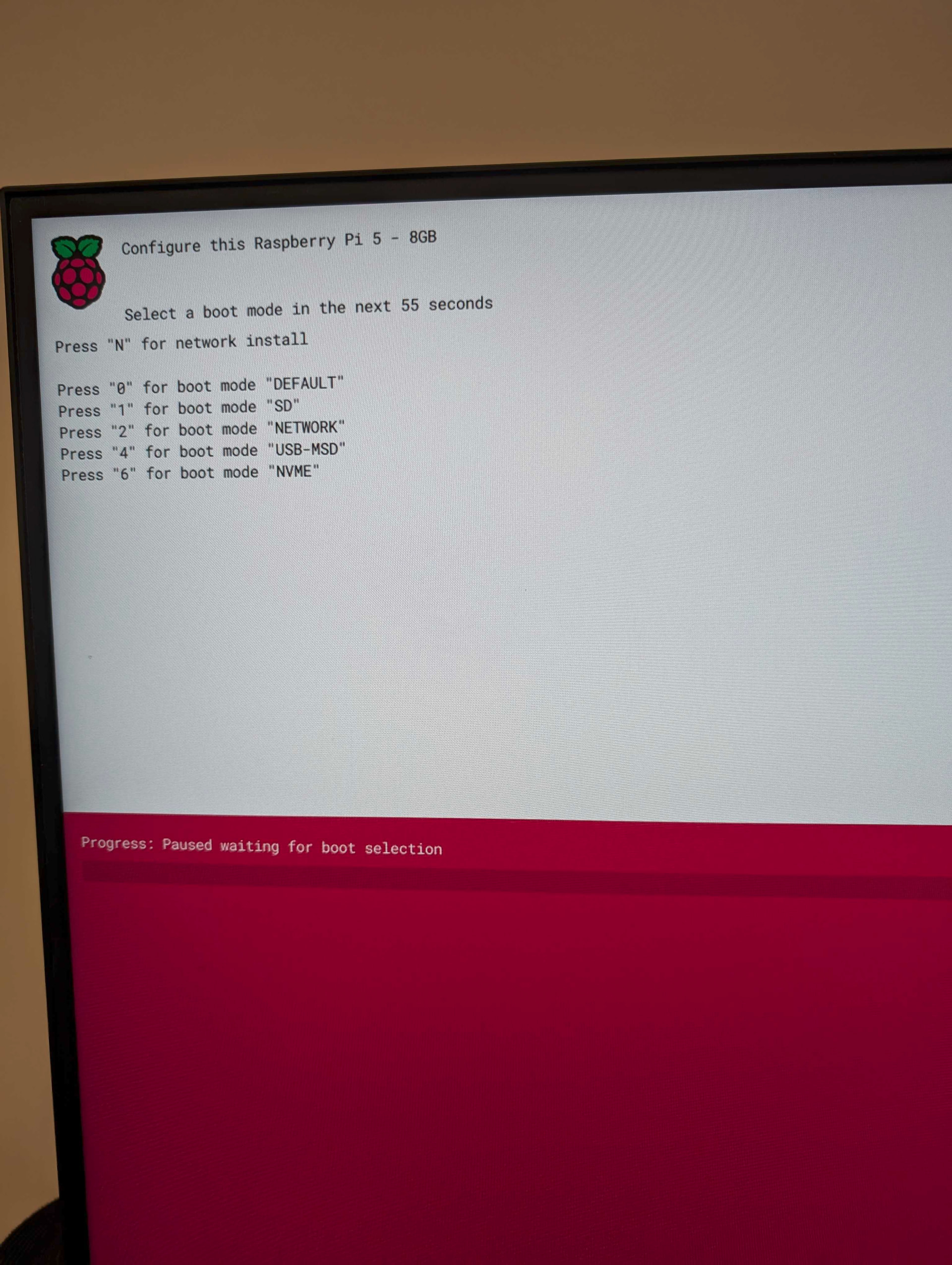
After selecting N, we then see the boot process begin for sled:
(video of boot process)
Imaging
So this covers us through sled, but now we need to create a Merge-OS capable image. Here i’ve deviated from putting the repo into gitlab for now and used mergetb’s github. To start, I used pi-gen, and then modified a few files to get a bootable merge OS. The diff set between them is here. The main file is config which is gitignored:
IMG_NAME="rpi-merge-small-trixie-armhf"
RELEASE="trixie"
TARGET_HOSTNAME="彷徨う"
LOCALE_DEFAULT="en_US.UTF-8"
KEYBOARD_KEYMAP="us"
KEYBOARD_LAYOUT="English (US)"
TIMEZONE_DEFAULT="America/Los_Angeles"
FIRST_USER_NAME="test"
FIRST_USER_PASS="test"
ENABLE_SSH=1
PUBKEY_SSH_FIRST_USER="ssh-ed25519 AAAAC3NzaC1lZDI1NTE5AAAAIB9HQ/r3cMtGTJfOKRklWR32Y6TG43E8OIav4yYEeXSA test@cloud-init.mergetb"
ENABLE_CLOUD_INIT=1
STAGE_LIST="stage0 stage1 stage2"
The main points here are we set a list of stages 0-2, set cloud init enabled, enable ssh and set username and password. Stages 3+ are all desktop environment related and bloat the image even more. There is some work that can be done here to reduce this images size from about 2.5G down to probably 1-1.5G. From there it uses the same cloud-init files that are used in the images branch. It takes about 30 minutes to build the image, and after it is done we need to put it into minio.
There were some issues with getting all the stars to align and kexec from sled into our current image. One issue that popped up is that because this sledc is bare, it is unable to do network time syncing, so the time is Jan 1 1970, this causes an issue when the minio client in sledc attempts to contact time-keeper ( src/sledc/main.go · raspberry-pi · MergeTB / Testbed Technology / sled · GitLab ) if no ntp server is specified via dhcp (option 42). It will use that option, if none provided, it will attempt to resolve time-keeper, to get the time, if that fails, then minio will fail to download.
(video of OS process)